Microsoft SharePoint
- 4.0
- Rating
- 10.00M
- Installs
- Free
- Price

 Analysis by App-foxy
I came away from Microsoft SharePoint feeling that it is less like a traditional file browser and more like a work dashboard for people whose documents, news, and team activity already live inside an organization. That distinction matters. If you only want a simple place to store personal files, this app may feel unnecessarily tied to workplace structures. If your employer or school uses SharePoint, however, the mobile app can turn scattered information into something much easier to reach while you are away from a desk.
This is a free productivity app from Microsoft Corporation, aimed at finding work-related sites, news, files, and people in a personalized organizational context. Its age rating is Everyone, and it has passed the ten-million-install mark with a 4.0 average from roughly thirty-four thousand ratings and about one thousand one hundred written reviews. Those figures suggest a well-established app with a broad audience, although they do not guarantee that every organization’s setup will feel equally polished.
How SharePoint fits into everyday work
I find SharePoint easiest to judge when I treat it as a doorway into an organization’s existing work rather than as a standalone file app. The key question is whether the sites and shared material I need are already organized and available to me; once that is clear, I can tell whether the next hurdle is the app itself or simply finding my way around the workplace structure.
You May Also Like

 Blood Strike: 2.5 Anniversary
Blood Strike’s Loadouts Turn Every Drop Into a Tactical Gamble
A close look at Blood Strike’s custom loadouts: how fast access to signature weapons reshapes its battle royale rhythm, rewards preparation, and narrows the gap between fights.

 Pandora - Music & Podcasts
Pandora’s Music Is Easy to Start, but Harder to Recover
Pandora’s strength is its low-effort path from a seed to a station. Its weak spot is how much confidence it asks you to place in connection, setup, and quiet recovery.

 8 Ball Pool
 Is Built on Rivalries, Rematches, and Routine
A close look at the rivalries, rematches, shared routines, and unanswered safety questions that turn a quick pool match into a persistent mobile community.

 Samsung Music
’s Quiet Strength Is Playing What You Already Own
Its reach comes less from spectacle than from dependable access to a personal library. That simplicity is both the app’s strongest retention engine and its ceiling.

 AccuWeather: Weather Radar
AccuWeather Review: A Quick, Clear Forecast for Everyday Decisions
For everyday plans, the best forecast is the one you can understand quickly. AccuWeather makes rain timing, radar, and local conditions easy to act on, with a few trade-offs.

 Hill Climb Racing
Why Hill Climb Racing Still Turns Crashes Into One More Run
A tiny car, a bumpy hill and one more upgrade: Hill Climb Racing keeps resurfacing because its simple chaos makes every near-miss feel personal.
More From Our News Desk
View All News


A mobile doorway into an existing workplace
My first useful observation is that SharePoint makes the most sense when it is already part of your company’s information system. The app is not simply a blank notebook waiting for you to add folders. It presents the material your organization has made available: team sites, internal news, documents, and people. In practice, that means the quality of the experience depends heavily on how thoughtfully your workplace has organized its SharePoint environment.
For example, imagine starting a commute and realizing that you need the latest version of a project brief before a morning meeting. Instead of searching through old email attachments, I would use the app to open the relevant site, locate the document, and check whether the team has published a newer copy. That is a meaningful improvement when the organization has clear site names and sensible document libraries. It is much less helpful when every department has created overlapping spaces with vague labels.
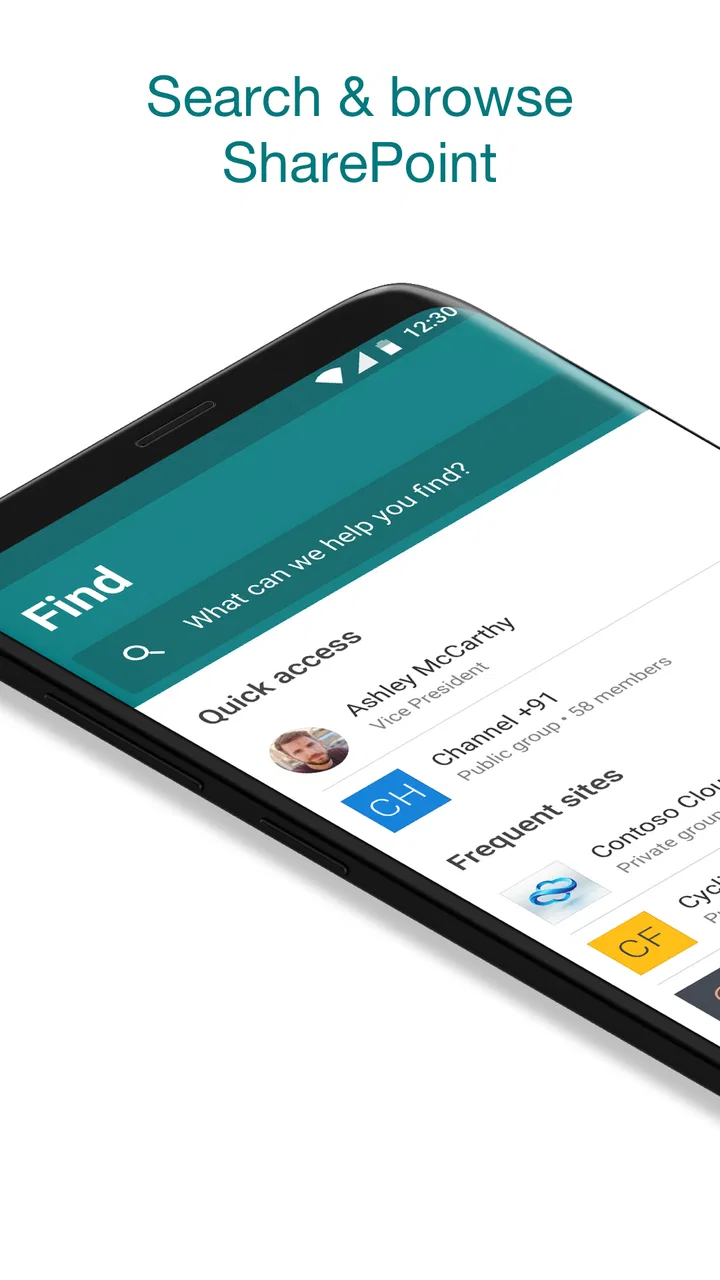
The app’s strongest role is therefore discovery. It brings work information closer to the surface rather than asking me to remember exactly where a file was stored. The personalized focus can be useful when I regularly move between several teams, because the most relevant sites and updates are easier to reach than they would be through a generic folder list.
Useful for people, not just documents
One detail that separates SharePoint from a basic cloud-storage app is its attention to people and organizational news. When I need to understand who owns a piece of work or where a department announcement originated, a workplace portal is often more useful than a standalone file manager. The app gives that broader context, which can prevent the common problem of opening a document without knowing whether it is current, official, or connected to the right team.
This is particularly practical for larger organizations. A new employee may not know which internal site contains a policy or which group handles a particular request. Searching for a person, department, or site can be more natural than asking around in messages. I would still treat the results as a starting point and verify important details, but the mobile access reduces the friction of navigating a large internal structure.
There is also a quiet advantage for people who work across locations. A site announcement or shared document can be checked from a phone while traveling between offices or working remotely. That does not replace a full desktop workflow, but it does reduce the number of situations where I have to wait until I return to a computer just to find information.
What the free price really means
The app itself is free, which makes trying it straightforward. I do not have to make a purchase decision before discovering whether the mobile experience suits my routine. That is valuable for employees who are already part of an organization using Microsoft’s workplace tools, because the app acts as an access point rather than an additional personal expense.
Still, “free” should be understood carefully here. The practical value comes from access to an organization’s SharePoint environment, not from receiving an independent personal productivity system with no surrounding setup. If your workplace does not use SharePoint, or if you do not have the necessary organizational access, the app’s usefulness will be limited regardless of its zero price. I would judge it as free access to a work service, not as a complete replacement for every note-taking, file-storage, or collaboration app.
That distinction also helps explain why comparing it with paid consumer software can be misleading. A personal storage subscription may offer a more direct file-management experience, while SharePoint is valuable because it connects documents with sites, teams, news, and people. The right question is not whether it has more features than another app, but whether it matches the way your organization already manages information.
Small habits that make it more useful
I found that the app rewards a few simple habits. First, I would identify the main sites I actually use instead of treating every available department space as equally important. Reducing the number of places I check makes the personalized area more meaningful and lowers the chance of overlooking the information that matters.
Second, I would use the people-oriented search when a document search produces too many similar results. Finding the responsible team or colleague can be faster than guessing which library contains the right file. This is a less obvious use of SharePoint, but it reflects how workplace information is really organized: documents often make sense only when connected to the people who maintain them.
Third, I would open a document from its site context when accuracy matters. A file discovered through a general search may be useful, but the surrounding site can reveal whether it belongs to the correct project or department. That extra check is worth the few seconds it takes when I am dealing with procedures, schedules, or material that changes regularly.
Where the mobile experience falls short
The biggest limitation is that a phone is not the best place for every SharePoint task. Reading an announcement or checking a file is comfortable enough, but managing a complicated information structure on a small screen can feel slow. If I need to compare several documents, reorganize a large library, or perform detailed editing, I would rather use a desktop browser or the appropriate Microsoft desktop tools.
Another source of friction is organizational inconsistency. SharePoint can expose a neat, useful collection of sites when administrators have created a clear structure. It can also expose years of accumulated pages, duplicate libraries, and outdated material. The app cannot fully solve that underlying problem. A clean mobile interface does not make confusing workplace content automatically clear.
Notifications and news can also become less valuable when an organization publishes too much. The personalized approach is helpful only when the underlying content is relevant. If every minor update competes for attention, I would use the app mainly as a search and access tool rather than relying on it as my primary news feed.
There is a trade-off between convenience and context. A mobile app encourages quick access, but quick access can tempt me to act on a document without checking its location or ownership. For routine material that may be fine. For sensitive or frequently revised work, I would slow down and confirm the site, the author, and the surrounding information before sharing or using it.
How it compares with familiar alternatives
Compared with a basic cloud-drive app, SharePoint feels more organizational. A drive is often centered on my files and folders; SharePoint is centered on shared spaces and the people or departments behind them. I prefer a drive for personal storage and quick file transfers. I prefer SharePoint when I need to understand where a document belongs inside a wider workplace.
Compared with an email inbox, it offers a better chance of finding the current shared copy instead of relying on an attachment someone sent earlier. Email remains better for direct conversation and immediate requests, but it is a poor long-term filing system. When a team uses SharePoint properly, the app helps move important material out of individual inboxes and into a shared location.
Compared with a chat application, SharePoint is less immediate but often more structured. Chat is excellent for asking a quick question or coordinating a task. It becomes harder to use when a decision, file, or announcement needs to remain discoverable weeks later. I see SharePoint as the place where durable team information should live, while chat handles the fast-moving conversation around it.
Compared with a personal notes app, SharePoint is not as appealing for private ideas, shopping lists, or individual planning. Its advantage appears when information needs to be shared, located by colleagues, and tied to an organization. Choosing it for personal notes would be like using a department filing cabinet as a diary: possible in spirit, but not the natural fit.
Who will get the most value
I would recommend trying it first to employees, students, contractors, and volunteers whose organizations already rely on SharePoint sites. It is especially useful for people who move between teams, work away from a desk, or frequently need to locate internal files and announcements without opening a laptop.
Managers and project coordinators may appreciate the broader view of sites, people, and news, particularly when their work spans several groups. New team members can also benefit because the app offers a practical route into an unfamiliar organizational map. It will not teach someone how the organization works, but it can make the relevant names, sites, and documents easier to find.
I would be more cautious if you work alone, mainly store personal files, or want a lightweight task manager. The free price is attractive, but free does not automatically mean useful. Without a SharePoint-based workplace to connect to, you may spend time navigating an environment that does not solve your actual problem. A personal drive, notes tool, or simple collaboration app would probably be a better choice in those cases.
Version and long-term confidence
The app was released on October 23, 2016, and the current version is 4.00.00, with a minimum operating-system requirement of 8.1. That long presence and substantial install base make it feel like a mature mobile companion rather than an experimental side project. I would still keep expectations realistic: maturity does not remove the need for a well-managed workplace account or a sensible information structure.
The 4.0 average is a reasonable sign that many people find it useful, while also leaving room for frustration. In my view, that balance fits the product. SharePoint can be genuinely convenient when the organization behind it has done the hard work of arranging content. The app is not magic, and its mobile interface cannot compensate for unclear ownership, duplicate files, or excessive internal publishing.
My recommendation after weighing the trade-offs
For someone whose employer or school already uses SharePoint, I think the free app is worth installing. I would use it for checking team news, locating the right shared document, finding the people connected to a project, and handling small information searches away from a computer. Those are concrete benefits, and they do not require turning the phone into a complete office.
I would not choose it as my main personal file manager or as a replacement for a dedicated notes, chat, or task application. Its value depends on an existing organizational ecosystem, and the experience can become frustrating if that ecosystem is poorly arranged. The most important trade-off is therefore not between free and paid software; it is between a workplace that uses SharePoint thoughtfully and one that merely has SharePoint available.
My final verdict is positive but specific: install it when SharePoint is already part of your working life. In that situation, it can save time and make internal information more reachable without adding a purchase cost. If you are looking for an independent productivity app with immediate personal benefits, I would skip it and choose a tool designed around your own files and routines instead.
FAQs for Microsoft SharePoint
01What is Microsoft SharePoint used for?
Microsoft SharePoint is a collaboration and document-management platform for organizations. It allows teams to store, organize, share, and work on files in one central location. Users can also access company news, internal sites, lists, task information, and shared resources. It is especially useful for businesses that need structured content, permission controls, and teamwork across departments or locations.
02Is Microsoft SharePoint free to download and use?
The SharePoint mobile app can generally be downloaded at no additional cost, but access to its features usually requires a work, school, or organizational Microsoft 365 account with an eligible SharePoint or Microsoft 365 subscription. Installing the app alone does not provide free access to SharePoint services. Available features may depend on the organization’s plan, account permissions, and administrator settings.
03Can I use Microsoft SharePoint on Android and iPhone?
Yes, Microsoft SharePoint is available for both Android and iOS devices. After signing in with an approved work or school account, users can browse sites, read organizational news, access documents, view activity, and collaborate while away from a computer. The exact interface and available functions may vary slightly between platforms, and some advanced management tasks are better handled through a web browser.
04Can Microsoft SharePoint be used offline?
SharePoint is primarily designed for online access, so an internet connection is normally required to browse sites, synchronize information, and retrieve the latest documents. However, files may be opened or made available offline through integrated Microsoft 365 applications such as OneDrive or Office, depending on your organization’s configuration. Offline changes typically synchronize after reconnecting, but users should confirm that synchronization completed successfully.
05Is Microsoft SharePoint secure for storing company documents?
Microsoft SharePoint includes enterprise-focused security features such as permission management, authentication controls, sharing restrictions, version history, and administrative policies. Nevertheless, security also depends on how an organization configures sites, libraries, and user access. Before uploading sensitive material, users should follow company guidelines, avoid sharing links carelessly, and verify that the correct people have permission to view or edit each document.
Pros
- Seamless integration with Microsoft 365 apps and services.
- Strong permission controls help protect shared business content.
- Offline access lets users view selected files without a connection.
- Powerful search makes finding documents
- sites
- and people easier.
- Push notifications keep users informed about relevant activity.
Cons
- Some features require a qualifying Microsoft 365 business subscription.
- The interface can feel complex for occasional or first-time users.
- Large SharePoint sites may load slowly on older mobile devices.
- File previews and editing depend on the installed Microsoft apps.
- Frequent notifications can become distracting without careful settings.

Microsoft SharePoint
Gallery